The 3-Second Screenshot Trick That Captures an Entire Webpage From Top to Bottom
A retailer charged me the pre-discount price on an order and I had to prove what the page said when I bought it. So I did what I'd always done: took eleven separate screenshots, scrolling a bit between each one, then spent twenty minutes in a photo app trying to line them up into something that made sense.
The support agent looked at my eleven overlapping images with three repeated headers and one accidental picture of my own notification bar, and asked, very politely, whether I could send it as a single document.
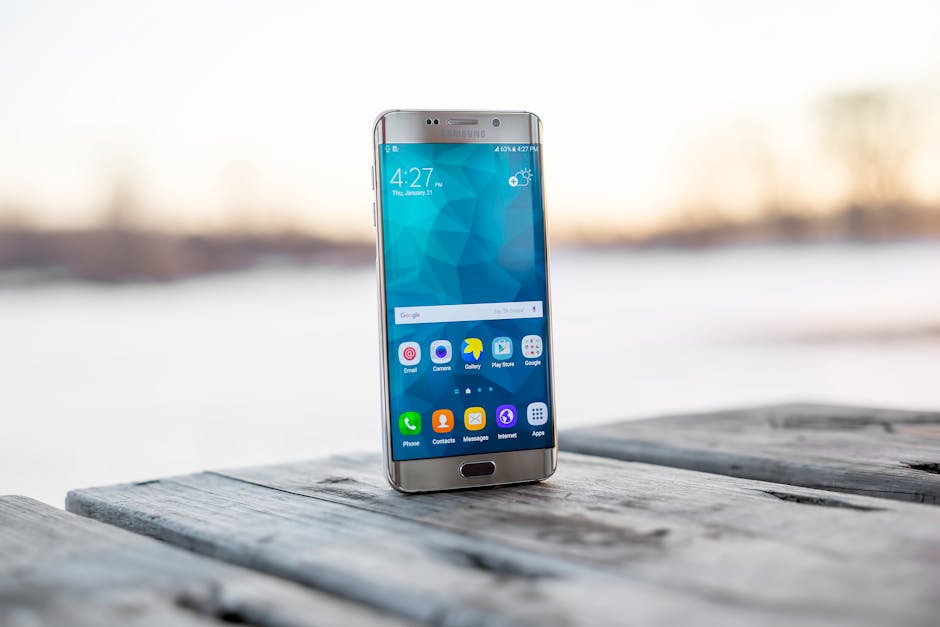
I could. My phone has done it for years. You take one screenshot, tap the little preview that pops up in the corner, and tap "Full Page." Three seconds, one file, the whole thing from top to bottom.
Why the thumbnail is the part everyone misses
The feature isn't hidden exactly, but it's behind a door most people never open. After a screenshot, both platforms show a small preview in the corner for a few seconds, and almost everyone treats that as a notification to be swiped away rather than a button to be pressed.
Tap it and you get an editor, and inside that editor is the full-page option. On iOS it's a tab labeled Full Page sitting next to Screen; on Android it's a button that says something like "Capture more" or "Scroll capture" depending on who made your phone. Same idea in both cases: the system re-renders the whole scrollable page rather than just the pixels currently lit up.
The preview vanishes after about five seconds, which is the entire reason this feature is a secret. Swipe it away and you've lost the option: you'd have to take the screenshot again.
Step 1: On iPhone, use the Full Page tab
Take a screenshot, tap the preview in the bottom-left corner before it disappears, then tap "Full Page" at the top of the editor and hit Done. You can crop the top and bottom with the handles on the right-hand strip before saving. One thing that catches everyone: this saves as a PDF into Files, not as a picture in Photos, so if you go looking in your camera roll you'll think it failed. It also only works in apps that support it, Safari, Mail, Notes and similar, so if the Full Page tab isn't there, that app doesn't offer it.

Step 2: On Android, look for "Capture more" or "Scroll capture"
Take a screenshot and tap the "Capture more", "Scroll capture" or "Scroll" button that appears alongside the preview, then drag the crop handles to set how much of the page you want. The name depends entirely on the manufacturer, and the button only appears when the app you're in has more content to scroll. Android usually saves this as a normal image file, which is more convenient for sharing than a PDF and less convenient if you wanted searchable text.

My Expert Tip: Do two things before you capture, and your long screenshots stop coming out broken. First, scroll the whole page to the bottom and back to the top: modern pages lazy-load images as you approach them, so anything you haven't scrolled past yet captures as a blank grey box. Second, dismiss the cookie banner and turn on Reader mode if the page offers it, because sticky headers and floating chat bubbles get re-drawn at every scroll position and you end up with the same navigation bar stamped down your document five times. Those two habits are the difference between a capture that looks deliberate and one that looks like evidence of a struggle. Thirty seconds, and it's what I wish I'd known before sending eleven images to a support agent.
Step 3: On a computer, use the browser's own tool
In Firefox, right-click the page and choose Take Screenshot, then "Save full page." In Chrome, open the developer tools, press Ctrl+Shift+P (Cmd+Shift+P on a Mac), type "screenshot" and pick "Capture full size screenshot." Both are built in and neither needs an extension: which matters, because screenshot extensions are a category with a long history of requesting far more access to your browsing than they need.
Step 4: For records, print to PDF instead
If you're keeping this as proof of something, use the browser's print function and choose Save as PDF rather than capturing an image. A printed PDF keeps the text selectable and searchable, includes the URL and date in the header on most browsers, and produces a far smaller file than a screenshot of the same page. For a price dispute, an order confirmation or a policy page that might change, that's a much stronger document than a picture, and you can search it later.

Step 5: Know where the file actually went
Check the save location straight away and rename it to something you'll recognize. An iOS full-page capture lands in Files, in whichever folder you chose, under a generic name; Android images go to your gallery in a screenshots folder. Rename it there and then: "receipt-order-4471.pdf" is findable in six months, "Screenshot 2026-09-18 at 14.22.07" is not. If it's anything you might need in a dispute, put a copy somewhere that isn't just your phone.

Step 6: Know the limits before you rely on it
Some apps block screenshots entirely, banking apps, streaming services, and some messaging apps, and that's a deliberate security feature, not a bug. Very long pages also produce genuinely unwieldy files; a forum thread with 400 replies makes a PDF nobody wants to open. And if you're capturing a page with other people's messages, names or personal details on it, crop before you share: the whole appeal of this feature is that it grabs everything, including things that weren't yours to pass on.

What this replaced
Eleven screenshots, twenty minutes of stitching, and a support agent who had to squint at overlapping headers: now three seconds and one file. I got my refund, three days later than I should have, entirely because I didn't know about a button that appears for five seconds in the corner of my own screen.
Since then I use it for things I never bothered documenting before: recipes off pages that get rewritten, confirmation screens, opening hours, a booking page before a site redesign eats it. The three-second version means the job is small enough to actually do.
The one habit worth building is the scroll-to-the-bottom-first move. It's the difference between a clean capture and one full of grey boxes, and it costs a few seconds.
Take a screenshot of any long page right now and tap the preview before it disappears: then hit the share buttons below and send this to the friend who sends you conversations six overlapping images at a time.